Most people have set up an inbox rule at some point. Newsletters go to a folder, messages from the boss get flagged, that kind of thing. Rules are useful, and nobody gives them much thought.
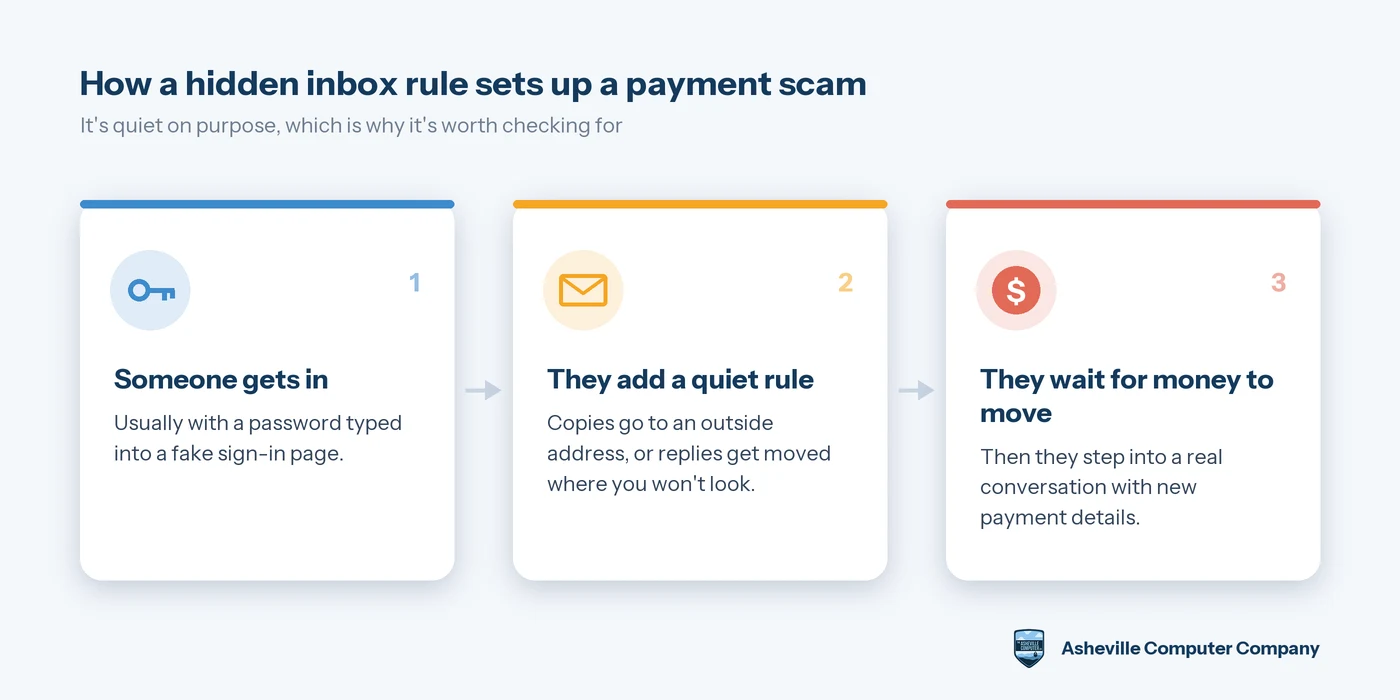
Attackers count on that. When someone breaks into a business mailbox, one of the first things they usually do is create a rule of their own. It doesn't break anything or set off alarms, and it can sit there for weeks while they watch your email.
What these rules do
A rule set up by an attacker usually does one of a few things.
It forwards copies of your mail somewhere else. Every message, or every message with words like "invoice," "payment" or "wire," gets quietly copied to an outside address. The attacker doesn't even need to stay logged in. They just read along.
It hides replies. Messages from a particular customer or vendor get moved to a folder nobody opens, like RSS Feeds, Archive or Conversation History, or get marked as read and deleted. That way, when a customer writes back to ask "did you really change your bank account?", you never see the question.
It hides warnings. Security alerts and "was this you?" sign-in notices get filtered out so you don't learn someone else is using your account.
These rules often have odd names, like a single period, a couple of dots or a random letter. That makes them easy to miss when you scroll through your rules list.
Why attackers bother
The goal is usually money, and the patient version works better than the loud one. With a forwarding rule in place, an attacker can watch a real conversation about a real invoice. When the timing is right, they send a message that looks like it comes from you or your vendor, with "updated" payment details. Because it shows up in the middle of a genuine thread, people believe it.
Meanwhile the delete rule makes sure the confused replies never reach you. By the time anyone notices, the money is gone. We've written before about scams that get started this way, including fake quote requests and deepfake voice calls.
How to check your own mailbox
This takes about two minutes.
In Outlook on the web or the new Outlook: open Settings, go to Mail, then Rules. While you're in Mail, also open Forwarding and make sure forwarding is off unless you turned it on yourself.
In classic Outlook on a desktop: go to File, then Manage Rules & Alerts.
Look for any rule you don't remember making, especially ones that forward to an outside address, delete messages, mark them as read, or move them to a folder you never use. Pay extra attention to rules with strange names or no real name at all.
If everything there is something you recognize, you're fine. It's worth checking every so often, the same way you'd glance at a bank statement.
If you find one you didn't make
Don't just delete it and move on. The rule is a symptom. The real problem is that someone else got into your account, and they may still have access.
Take a screenshot of the rule first. Where it forwards to and what it filters tell your IT provider what the attacker was after.
Call your IT person. Call instead of emailing, since your email is the thing that's compromised.
Change your password from a different device, then have your IT provider sign you out of every session and check whether any new sign-in methods were added to your account. A new phone number or authenticator app you don't recognize is a bad sign.
Think about who you were talking to about money. If the rule was watching for invoices or payments, the people on those conversations may be the next target. A quick phone call to them, using a number you already have, can head off a fake payment request before it lands.
If you've recently clicked a link you weren't sure about, our post on what to do after clicking a suspicious link covers the first ten minutes.
What can be done ahead of time
There are a few business-wide settings that make this much harder to pull off.
Block automatic forwarding to outside addresses. Microsoft 365 can prevent mailboxes from auto-forwarding mail outside your company. For most small businesses it should be blocked unless there's a specific reason for an exception.
Alert on new rules. Your IT provider can set up alerts for new forwarding or delete rules, so someone looks at them the day they appear instead of weeks later. We have alerts like this in place for the businesses we manage, and they catch real ones.
Use strong sign-in protection. Most of these takeovers start with a stolen password. Multi-factor authentication, ideally with passkeys or app prompts rather than text messages, makes a stolen password much less useful on its own.
No single setting stops every attack, which is why these work best together. Each one gives you another chance to catch a problem before it costs you.
Final thoughts
A hidden inbox rule is one of the clearest early signs that a mailbox has been taken over, and one of the easiest to check for. Two minutes in your settings can tell you a lot.
Asheville Computer Company provides layered email security and day-to-day IT support for businesses across Asheville, Arden, Fletcher, Hendersonville and Western North Carolina. If you find a rule you don't recognize, we'd rather hear about it today than after the money moves.